This guide describes the deployment workflow used by Datanet Hosting Solutions to prepare a DigitalOcean Droplet for Windows Server 2022 Datacenter. The process begins by provisioning a Linux Droplet, then preparing and starting the Windows installation, completing setup, and connecting to the server through Remote Desktop Protocol (RDP).
The screenshots in this guide illustrate the key stages of the deployment. Exact console options and installation screens may vary depending on the selected Droplet plan and deployment environment.
Sign in to the DigitalOcean Control Panel and start creating a new Droplet. Choose the datacenter region closest to your users or application dependencies. In the example shown, the selected region is Bangalore (BLR1). Select the appropriate VPC network for your environment.
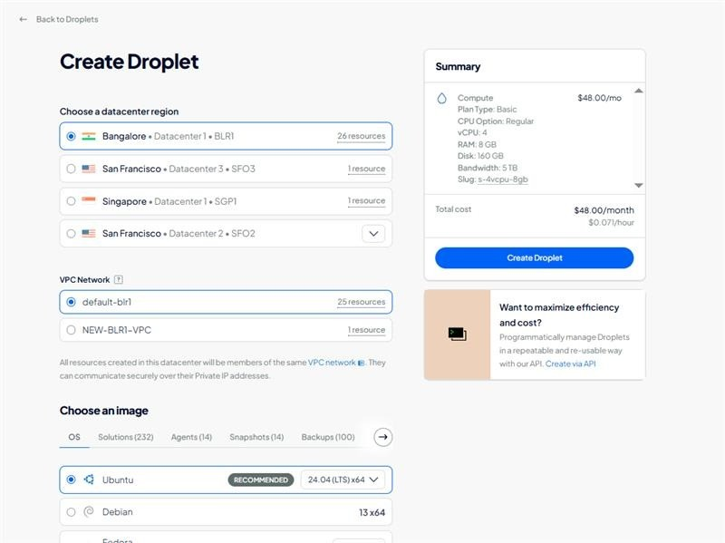
Figure 1. DigitalOcean Droplet creation: datacenter region, VPC network, operating system image, and configuration summary
Choose Ubuntu as the initial operating system. This Linux Droplet is used as the starting environment for the Windows deployment workflow.
Recommended Droplet Sizing – Choose a plan with at least 4 GB of RAM. For the example configuration in the screenshots, an 8 GB RAM plan is selected. Also consider CPU, disk capacity, and expected workload before creating the Droplet.
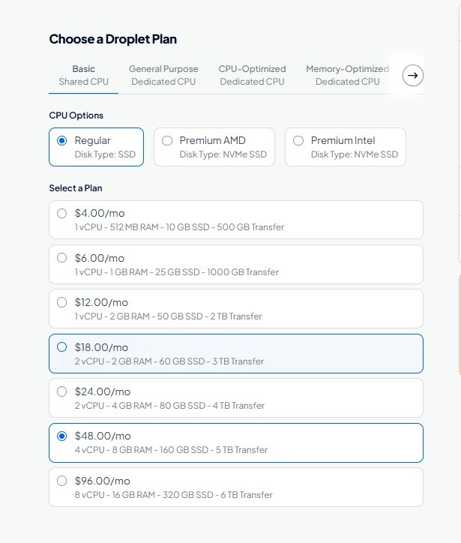
Figure 2. Droplet plan selection. The illustrated example uses 4 vCPUs, 8 GB RAM, and 160 GB SSD storage.
After reviewing the selected region, image, VPC, and plan, create the Droplet. Note the public IP address for later RDP access.
Once provisioning is complete, open the Droplet details page. Use the Access section to launch the Droplet Console and sign in with the configured Linux administrative credentials. Confirm that the server is reachable and has internet connectivity before proceeding.
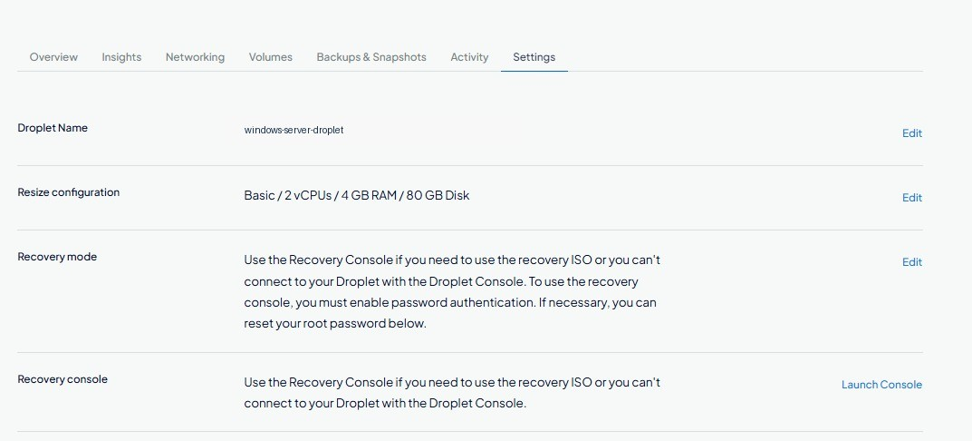
Figure 3. Droplet settings page. Use the console access options available for the selected Droplet.
Prepare the Windows Server 2022 Datacenter installation environment and select the required edition, administrator account details, and language. The deployment workflow then initiates the Windows installation. The actual installation utility and configuration should be handled according to the procedure validated for your environment; this guide intentionally does not publish the installation command or credentials.
Before continuing: Back up any required data. Replacing the existing operating system can erase data on the system disk. Confirm that the selected Droplet contains no data that must be retained.
When Windows Setup displays the destination disk screen, identify the intended system disk. In the example screenshot, Drive 0 is shown as 80 GB of unallocated space. Select the correct target disk and continue with Windows Setup. Verify disk size and selection carefully before proceeding.
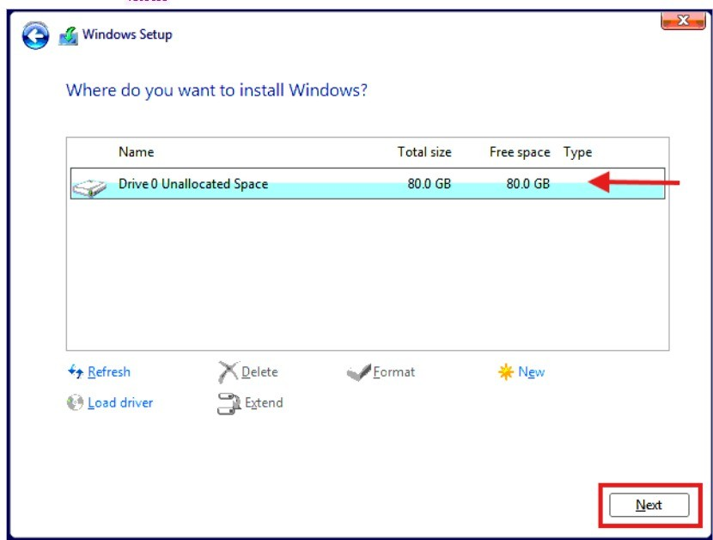
Figure 4. Windows Setup disk selection. The example shows Drive 0 with 80 GB of unallocated space.
Disk sizes will differ depending on the Droplet storage plan. Do not assume the example capacity will match every deployment.
After selecting the target disk, Windows Setup copies files and installs operating system features and updates. Allow the process to complete without interrupting the server. The machine may restart as part of the installation and first-boot process.
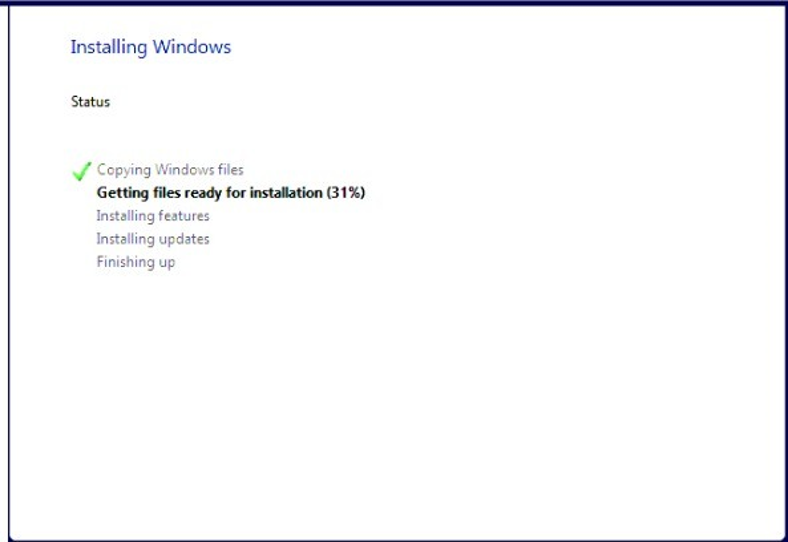
Figure 5. Windows Setup installation progress. Wait for the installation and first boot to finish.
After Windows has completed installation and Remote Desktop is available, open Remote Desktop Connection on your workstation. Enter the Droplet public IP address followed by the RDP port if required (the default is TCP 3389). Authenticate with the Windows Administrator credentials configured during deployment.
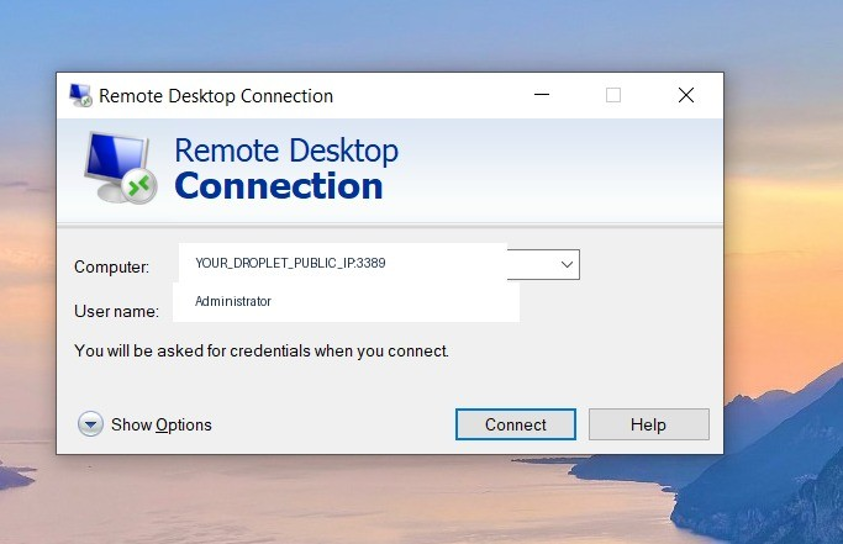
Figure 6. Remote Desktop Connection. The example IP address and machine-specific account details have been replaced with placeholders.
Once authentication succeeds, the Windows Server desktop should appear. Store administrator credentials securely and avoid sharing them in screenshots or documentation.
This deployment method is an alternative, manually managed operating system deployment workflow. DigitalOcean does not provide full official support for Windows Server installations deployed through this approach. Availability of console, networking, storage, backup, and recovery capabilities may depend on the deployment method and platform configuration.
Safety and responsibility: The deployment can be operated with appropriate technical controls, licensing, security hardening, and tested backup/recovery procedures. However, no cloud deployment can be described as risk-free. Users should validate the installation method, Windows licensing rights, platform compatibility, and recovery plan before using the server for production workloads. Do not interpret this guide as an endorsement or official support statement from DigitalOcean.
Deploying Windows Server 2022 on cloud infrastructure requires careful planning, suitable Droplet resources, a validated installation workflow, and secure remote access. By following the stages in this guide, administrators can understand the deployment sequence and the essential checks required after installation.
Datanet Hosting Solutions provides cloud infrastructure deployment, Windows and Linux server administration, cloud migration, security configuration, and backup planning as we are DigitalOcean billing partner in India. Visit www.datanethosting.com to learn more about our hosting and infrastructure services.