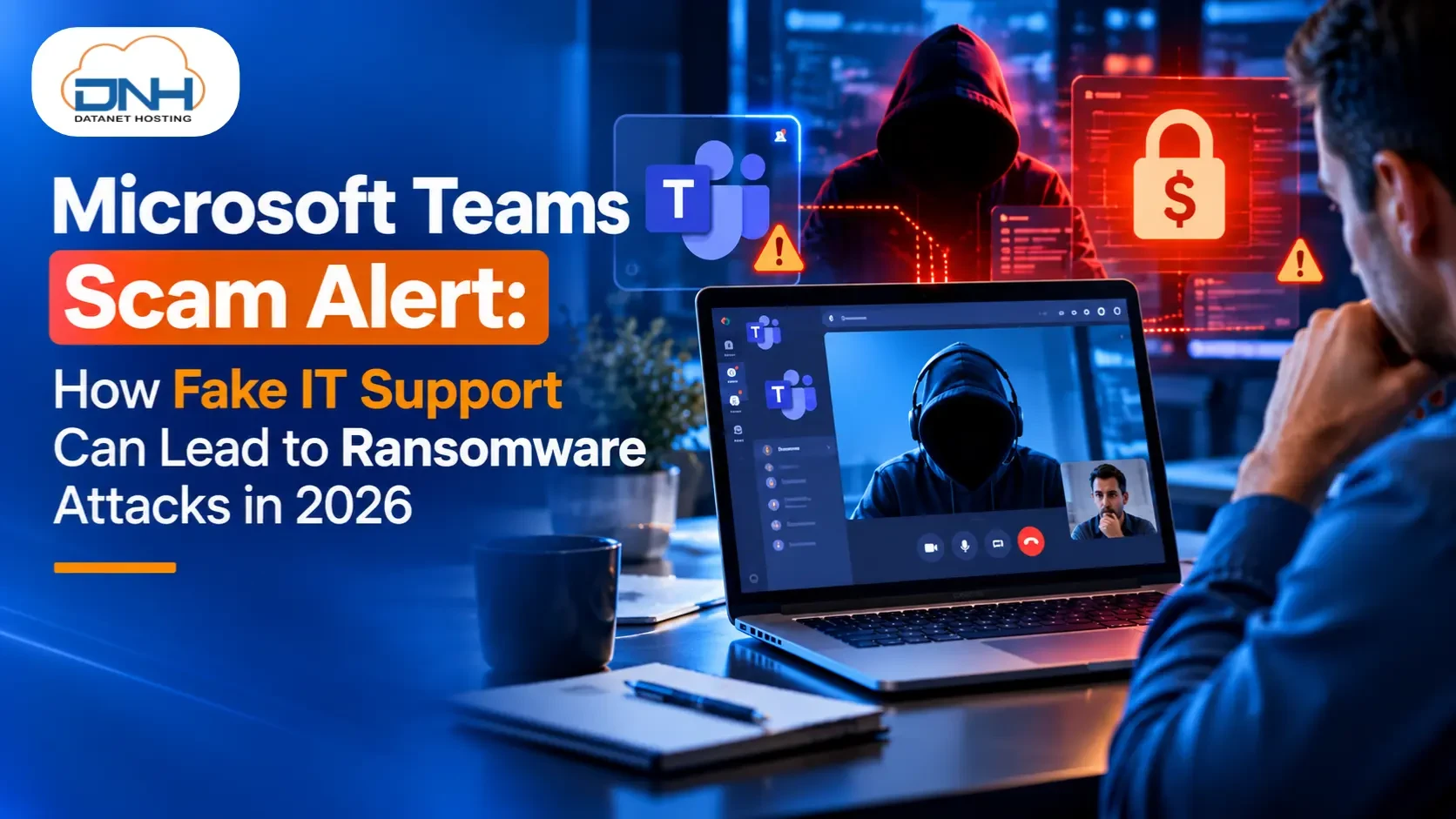
Cybercriminals are exploiting trusted workplace communication tools to target businesses with increasingly convincing social engineering attacks. One concerning technique involves impersonating internal IT support through Microsoft Teams and persuading employees to grant remote access to their computers.
In some incidents, the attack begins with an unexpected message about a security update or technical problem. The employee is then encouraged to install remote access software or follow instructions from someone claiming to be an IT administrator. Once access is obtained, attackers may attempt to steal credentials, deploy malware, move across the corporate network and ultimately compromise business data.
On October 26, 2026, The Hacker News reported on a recurring Microsoft Teams IT support impersonation pattern identified by Arctic Wolf Labs. The report described attacks involving fake IT support identities, remote administration tools and malicious payloads, with some incidents escalating to data theft and ransomware.
A further report published by Help Net Security on October 27 highlighted more than 400 investigated incidents involving abuse of Microsoft Teams external chat functionality. Researchers described cases in which employees were flooded with email subscriptions or notifications before being contacted by fake helpdesk personnel offering assistance.
These reports highlight an important lesson for businesses: a familiar communication platform does not guarantee that the person contacting you is trustworthy.
For organisations relying on cloud hosting, Microsoft 365, business applications and connected IT infrastructure, understanding this threat is essential to reducing the risk of ransomware and data breaches.
In this guide, Datanet Hosting explains how Microsoft Teams fake IT support scams work, the warning signs employees should recognise, and the security measures businesses can implement to protect their systems.
A Microsoft Teams fake IT support scam is a social engineering attack in which a cybercriminal impersonates an internal IT employee, helpdesk administrator or trusted technical service provider.
The attacker attempts to convince the victim to take an action that compromises their security. This may include accepting an external chat, sharing sensitive information, installing remote administration software or allowing someone to control their computer.
Unlike attacks that depend entirely on exploiting a software vulnerability, this technique takes advantage of human trust and normal business workflows.
Attackers may use display names such as:
IT Support (Internal)
Help Desk Administrator
Enterprise IT and Security
IT Service Desk
These names are not proof of legitimacy. Attackers can create external identities that appear professional or use names resembling those of legitimate departments.
According to the October 2026 reporting by Arctic Wolf Labs, threat actors have used IT-themed identities and external Teams conversations to establish trust before requesting remote access. The reported activity does not necessarily indicate a vulnerability in Microsoft Teams itself; it can involve the misuse of legitimate collaboration functionality.
Businesses regularly collaborate with external customers, vendors, consultants and service providers. Employees may therefore be accustomed to receiving messages from people outside their organisation.
An attacker can exploit this routine by presenting an urgent technical problem and offering an immediate solution.
The risk increases when employees do not know how legitimate IT support contacts them, when external access is insufficiently restricted, or when remote administration tools are available without adequate controls.
The attack typically progresses through several stages. Not every incident follows the same sequence, and granting remote access does not automatically result in ransomware. However, unauthorised access can create an opportunity for further compromise.
The victim receives an unexpected Microsoft Teams message from an unfamiliar external contact claiming to be IT support.
The message may refer to an urgent security patch, suspicious account activity, an expiring licence or a technical issue that needs immediate attention.
For example:
“Urgent security update required. Please connect with IT support immediately to protect your computer.”
The message is designed to create urgency and encourage the employee to respond before verifying the sender.
After the employee responds, the attacker may move the conversation to a voice call and offer to resolve the supposed problem.
The victim may be instructed to use a legitimate remote support application such as Quick Assist, AnyDesk, ScreenConnect or another remote administration tool.
These applications have legitimate business uses. The danger arises when an unauthorised person gains access through deception.
The October 27 report from Help Net Security describes incidents in which fake helpdesk personnel persuaded employees to install remote access tools and follow technical instructions. Read the report.
Security warning: Never approve a remote support session simply because someone claims to be from your company's IT department.
If the employee authorises the session, the attacker may gain access to the device within the permissions granted.
Depending on the circumstances, the attacker may attempt to:
View sensitive information displayed on the screen.
Access documents and business applications.
Obtain credentials or session information.
Download or execute unauthorised software.
Change system settings or create additional access.
Identify other systems accessible from the compromised device.
The potential impact depends on the access granted, the user's privileges and the security controls protecting the environment.
Once an attacker has access, they may try to execute malicious files or misuse legitimate administrative utilities.
The October 2026 reporting describes attack chains involving remote management tools, malicious payloads and further activity within compromised business environments.
Such activity may be harder to detect when it resembles normal IT administration.
Endpoint security, application control, centralised logging and appropriate restrictions on remote access can help organisations detect and investigate suspicious behaviour.
An attacker who compromises a business computer may attempt to discover additional accounts, servers, shared resources and administrative systems.
If security controls are inadequate, the incident may escalate beyond the initial device.
Potential consequences include credential theft, unauthorised data access, lateral movement between systems, disruption of business applications and exfiltration of sensitive information.
In some incidents, attackers use their access to deploy ransomware or conduct data-extortion operations.
Ransomware can encrypt files and disrupt access to essential systems. In double-extortion attacks, criminals may also steal sensitive information and threaten to release it unless a ransom is paid.
Possible business consequences include:
Website or application downtime.
Loss of access to business-critical data.
Disruption to employee productivity.
Financial losses and recovery costs.
Exposure of confidential customer information.
Damage to business reputation and customer trust.
Not every Microsoft Teams scam ends in ransomware. Nevertheless, an unauthorised remote access session should be treated as a potential security incident until the organisation has assessed the risk.
Employees and IT administrators should pay attention to the following warning signs.
An unfamiliar person contacts you claiming to represent internal IT support or a trusted service provider.
Check the sender's identity and email address rather than relying on the display name alone.
The message claims that your computer, account or business systems will be compromised unless you act immediately.
Attackers often use urgency to prevent careful verification.
The sender asks you to install a security update, open an attachment or execute a file from an unfamiliar source.
Use your organisation's approved software installation process instead.
Someone asks you to install Quick Assist, AnyDesk, ScreenConnect or another remote access tool without a verified support request.
Do not share a session code or approve control until the request has been independently confirmed.
An unexpected contact asks you to reveal your password, one-time verification code or other authentication information.
Never disclose these details to an unverified support contact.
The sender asks you to turn off antivirus protection, bypass a warning or change security settings without an approved procedure.
Treat such requests as suspicious and verify them with your authorised IT team.
The person insists that the issue is confidential or too urgent to confirm through the normal IT support process.
Legitimate urgency is not a reason to abandon security checks.
Microsoft's official guidance advises users to verify external senders, inspect suspicious messages and accept conversations only when they trust the sender. Suspicious contacts can be blocked or reported.
Microsoft Support: Prevent spam or phishing attempts from external Teams chats.
Effective prevention requires a combination of user awareness, identity security, endpoint protection, network controls and incident response.
IT administrators should assess whether unrestricted external communication is necessary for their business.
Recommended measures include:
Allowing external communication only where business requirements justify it.
Restricting external access to approved partner domains where appropriate.
Reviewing guest access and external collaboration policies.
Blocking suspicious contacts and reporting confirmed phishing attempts.
Educating employees about external sender indicators.
These settings should be tested against legitimate collaboration needs before being changed.
Businesses should define exactly how authorised IT staff contact employees and request remote access.
Employees should verify unexpected support requests through a known internal telephone number, official helpdesk portal or established company communication channel.
Do not rely on contact information provided by the suspicious sender.
A documented support process makes it easier for employees to distinguish genuine assistance from impersonation.
Multi-factor authentication (MFA) adds a layer of protection beyond a password.
Organisations should consider:
Enforcing MFA for business accounts.
Using phishing-resistant authentication where supported.
Applying conditional access policies.
Restricting privileged account access.
Reviewing unusual sign-in activity.
Revoking compromised sessions when necessary.
MFA is important, but it does not prevent every attack. Organisations must also protect authentication sessions, devices and remote administration workflows.
Employee laptops, desktops and servers should have appropriately configured endpoint security.
Depending on the environment, this may include antivirus protection, endpoint detection and response (EDR), application control and centralised security logging.
Security teams should investigate unusual remote access sessions, unexpected software installations and suspicious administrative activity.
Keeping operating systems and applications updated also helps address known vulnerabilities, although patching alone cannot prevent social engineering attacks.
A properly configured business firewall helps control network traffic and restrict unauthorised connections.
Organisations should review firewall rules, limit unnecessary exposure of administrative interfaces, segment critical systems and restrict access to sensitive infrastructure.
Enterprise firewall solutions such as Fortinet FortiGate can support network security through capabilities including access control, threat prevention and security inspection, depending on the model, licensing and configuration.
However, a firewall is not a complete defence against an employee being tricked into authorising remote access. Network security should be combined with endpoint protection, identity controls and employee awareness.
Remote administration applications should be available only to authorised users and approved support teams.
Businesses should maintain an inventory of remote access tools, remove unnecessary applications and monitor their use.
Additional controls may include restricting installation privileges, using approved support software, requiring strong authentication and recording administrative sessions where appropriate.
These measures can reduce opportunities for attackers to misuse legitimate tools.
Backups are essential to ransomware resilience.
Businesses should protect copies of critical business files, databases, website data, application configurations and other important information.
Recommended practices include:
Following the 3-2-1 backup principle where practical.
Maintaining offline or immutable backup copies where appropriate.
Separating backup administration from ordinary user accounts.
Monitoring backup jobs and investigating failures.
Testing restoration procedures regularly.
Defining recovery time and recovery point objectives.
Backups should be protected from unauthorised deletion or modification. A backup strategy is only effective if the organisation can restore its systems and data within an acceptable timeframe.
Security awareness training should include practical examples of fake Teams messages, phishing emails, fraudulent support calls and unexpected remote access requests.
Employees should know how to report suspicious activity without fear of blame.
Regular training, clear escalation procedures and simulated phishing exercises can help improve awareness and response.
Businesses should document the steps employees and administrators must follow when a scam is suspected.
The plan should identify incident owners, escalation contacts, containment procedures, investigation requirements, communication responsibilities and recovery priorities.
Regular testing can help ensure that the response process works under pressure.
If you have approved a suspicious remote support session or followed instructions from an unverified IT contact, act promptly.
Step 1: End the remote session. Stop the session if it is safe to do so. If compromise is suspected, isolate the affected device from the network according to your incident response procedure.
Step 2: Notify your IT or security team. Use an established internal contact method and explain what happened, including the software used and any actions you approved.
Step 3: Preserve evidence. Retain relevant Teams messages, sender details, timestamps, alerts and other evidence. Avoid improvised cleanup that could destroy useful investigation data.
Step 4: Investigate potential credential exposure. The security team should determine whether credentials, authentication sessions or sensitive information may have been compromised and take appropriate containment steps.
Step 5: Check for malicious activity. Investigate unexpected applications, remote administration tools, suspicious processes, unusual account activity and potential access to other systems.
Step 6: Review backups and recovery options. Confirm that backup systems remain protected and that critical data can be restored if necessary.
If ransomware is suspected, prioritise containment and involve qualified incident responders. Do not assume that removing the remote access application has fully resolved the incident.
Modern businesses depend on interconnected digital systems, including websites, cloud platforms, business applications, servers and employee devices.
A compromised endpoint can create additional risks when it has access to sensitive accounts, administrative credentials or connected infrastructure. The extent of that risk depends on the organisation's architecture and access controls.
A layered security strategy should cover the following areas:
Network security: Firewalls, network segmentation and access control.
Endpoint security: Device protection, security monitoring and controlled software installation.
Identity security: MFA, least-privilege access and secure administrative accounts.
Server and cloud security: Secure configuration, timely patching and restricted administrative interfaces.
Backup and disaster recovery: Protected backups and tested restoration procedures.
Managed IT and security support: Ongoing monitoring, configuration reviews and incident response coordination.
Businesses should also define which security responsibilities belong to their hosting provider, internal IT team and third-party security vendors. Hosting alone does not automatically protect every employee device, identity or application.
Datanet Hosting Solutions provides hosting and IT infrastructure services for businesses that depend on reliable digital operations.
Organisations reviewing their security posture may also need to assess network protection, backup arrangements, server configurations and the responsibilities shared between their internal teams and external technology providers.
Depending on your requirements, relevant solutions may include:
Explore business firewall options, including Fortinet FortiGate, to help strengthen network access controls and protect business environments against a range of network threats.
Review your backup strategy, data protection requirements and recovery procedures to help improve business continuity in the event of a cyber incident.
Assess hosting and server environments for appropriate access controls, secure configuration, maintenance and operational reliability.
Identify potential gaps across your infrastructure and prioritise improvements based on your business needs, security requirements and recovery objectives.
The right approach depends on your infrastructure, operational requirements, compliance obligations and risk profile. Security controls should be selected and configured to meet those requirements rather than relying on a single product or service.
A single fraudulent Teams message can create a serious security risk when it leads to unauthorised remote access.
The best defence combines employee awareness, verified support procedures, identity protection, endpoint monitoring, network security and reliable backups.
Contact Datanet Hosting to discuss your hosting, firewall, backup and IT infrastructure security requirements email at [email protected] , call at :+919971329945
It is a social engineering attack in which a criminal impersonates IT support or another trusted contact to persuade an employee to share information, execute a malicious file or grant remote access to a device.
Yes. If an attacker gains sufficient access, they may steal credentials, deploy malware, compromise additional systems or deploy ransomware. The outcome depends on the attack and the organisation's security controls.
Not necessarily. The October 2026 reports describe abuse of legitimate external collaboration features and social engineering techniques. The reported activity should not automatically be interpreted as a vulnerability in Microsoft Teams itself.
Look for unexpected external contacts, suspicious display names, urgent security warnings, unverified downloads and requests for remote access. Verify the sender independently before taking action.
A firewall can help restrict network exposure and block certain malicious traffic, but it cannot prevent every social engineering attack. Businesses should combine network security with endpoint protection, identity controls, employee training and secure backups.
Protected backups can help organisations recover files and systems after an incident. Businesses should maintain appropriate backup copies, restrict administrative access and test restoration procedures regularly.
End the session, notify your authorised IT or security team, preserve relevant evidence and investigate potential compromise. If malicious activity is suspected, follow your incident response procedures and prioritise containment.
Businesses can review external access policies, verify support requests, enforce MFA, restrict remote administration tools, monitor suspicious activity and train employees to report suspected impersonation.